Better color search, and more ways to save context

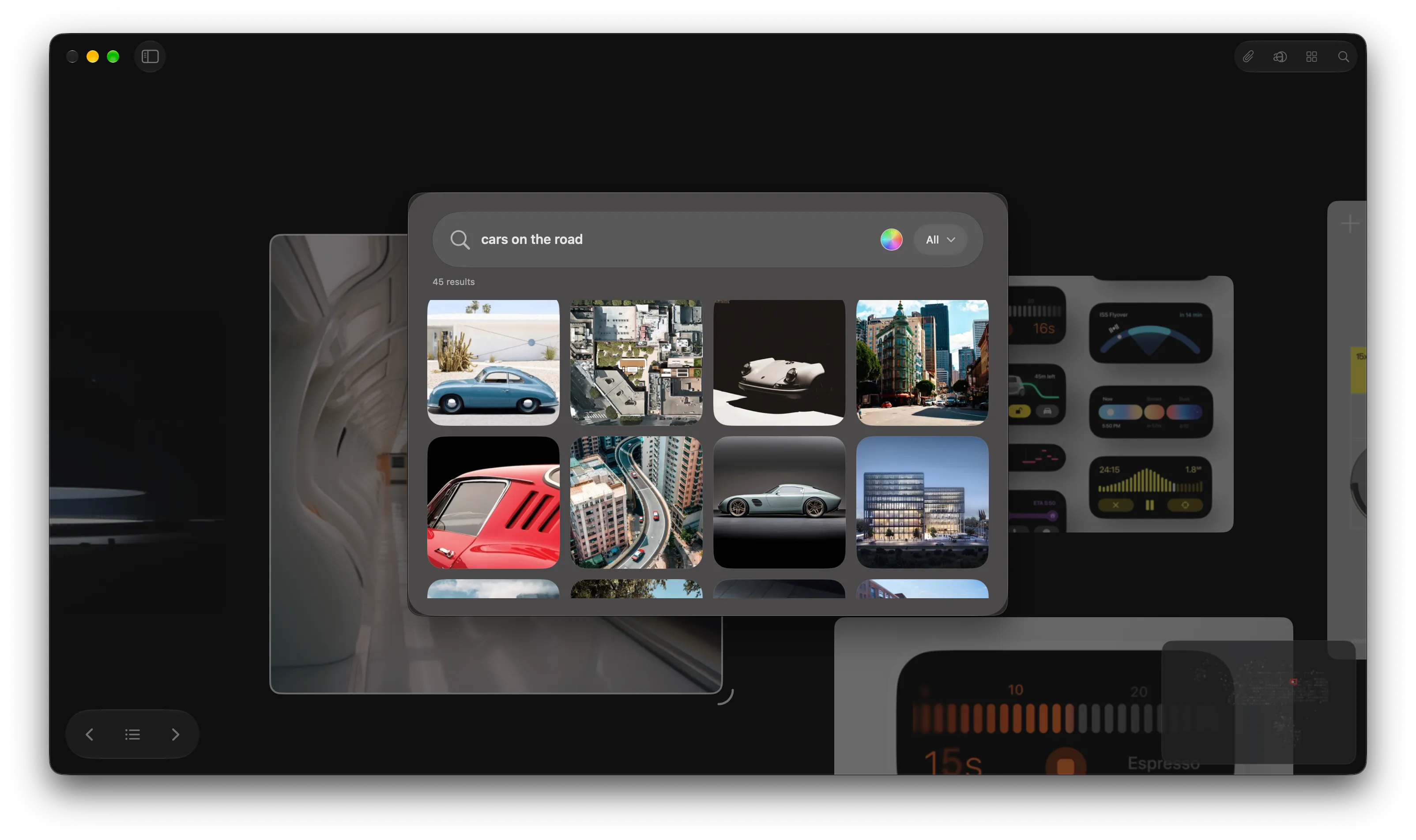
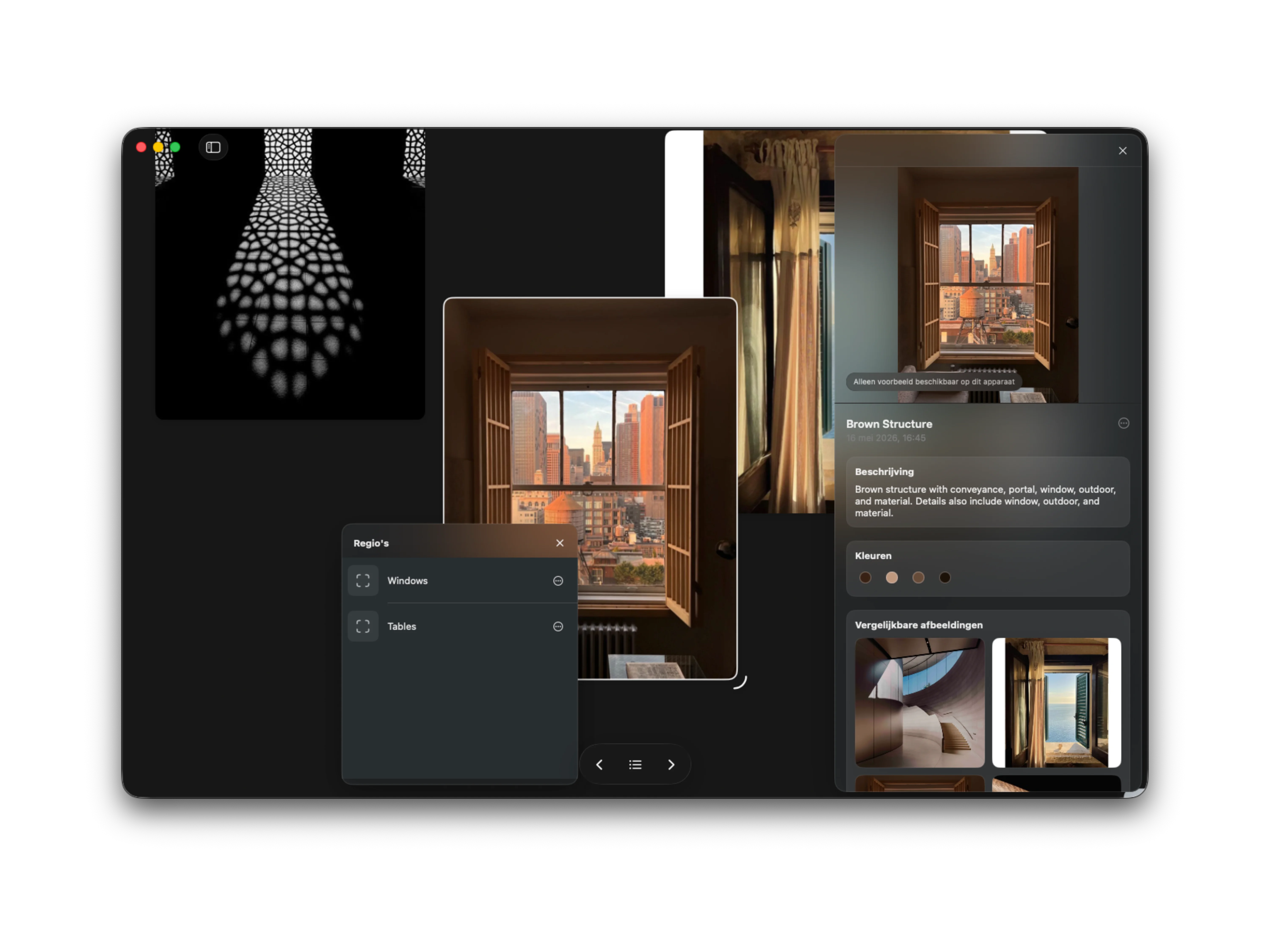
Color is one of the fastest ways to remember why a reference mattered. Reference now makes that kind of search more direct, with a color picker for finding images by palette, plus support for website links, Tweets, and Maps links that can live on the board as proper reference cards.

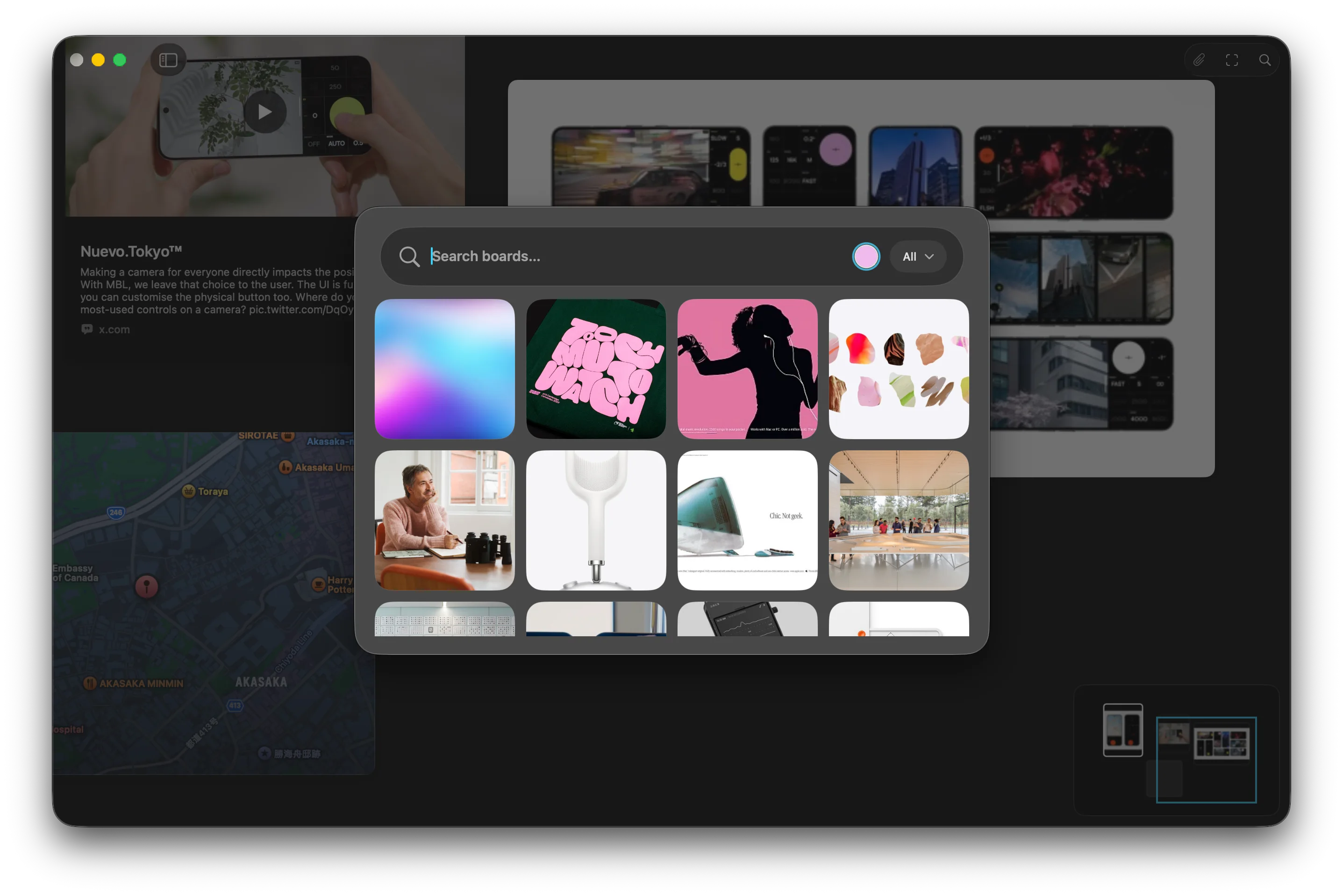
Reference Board showing color search over a board with website, Tweet, and Maps cards
Search can start from a color as easily as a word.

When the color is the memory

Visual search often starts before you have the right words. You might remember a washed blue, a warm concrete tone, a specific red, or the way a group of images felt together before you remember the subject, source, or filename.

That is why color search matters. A palette can be the strongest part of a reference, especially when you are trying to shape a mood, compare directions, or find the image that belongs beside another one. Reference already understood colors in saved images, but the search flow now makes that more immediate.

You can pick a color directly and use it as a search filter. Instead of choosing from a small set of named colors, you can search with the tone you actually have in mind. It is a small interaction, but it makes the board feel closer to the way visual memory works.

Search that stays visual

The point is not to turn color into another strict filing system. Most creative references do not fit cleanly into labels like blue, green, or brown. A color might be slightly dusty, almost black, soft but saturated, or somewhere between two names.

The improved color search gives Reference a little more room to find nearby matches. That makes it more useful when you are gathering references by palette, looking for related material across a larger board, or trying to return to something you saved because of its atmosphere rather than its content.

Search should not always ask you to translate the visual thing into language first. Sometimes the visual thing is already enough.

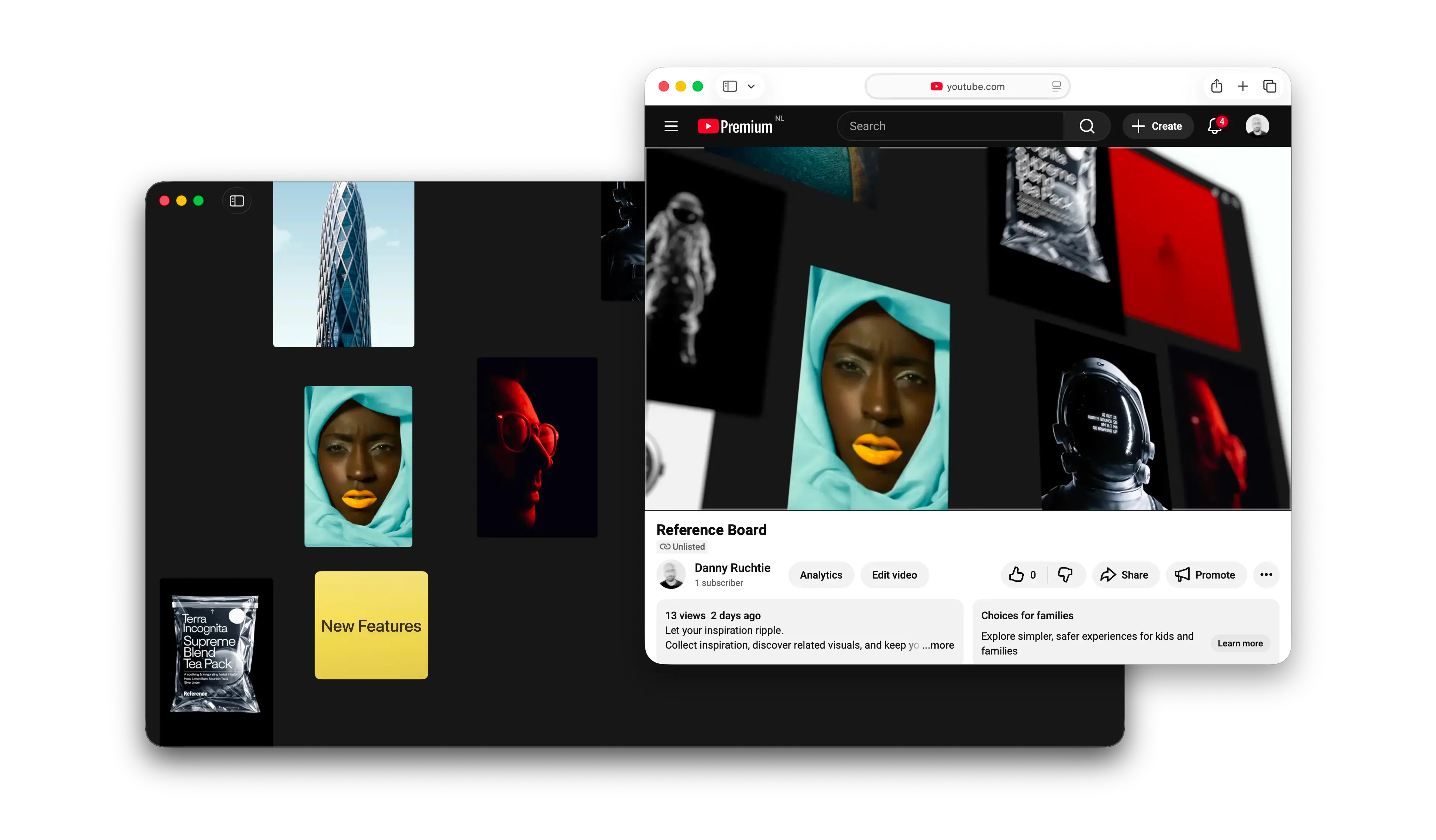
This update also makes boards better at holding the context around a reference. You can add website links, Tweets, and Maps links to a board, and Reference turns them into cards that sit alongside the rest of your material.

That is useful because not every reference starts as an image file. A source article, a post, a place, a location, or a small piece of web context can be part of the same thought. If it has to stay in a browser tab, a note, or a separate app, it is more likely to disappear from the direction you are building.

Cards keep that context visible. A website can sit beside the image it explains. A Tweet can stay close to the idea it sparked. A Maps link can become part of a board about a place, a route, a neighborhood, or a location-based project.

A board with better memory

Together, better color search and richer link cards are both about the same thing: making a board easier to come back to.

Collecting references is quick. Understanding why they mattered later is the harder part. Color, source, location, and surrounding context are all part of that memory. The more of it Reference can keep close to the canvas, the less you have to reconstruct when you return.

The board stays visual first. It just remembers a little more of what made the reference useful.

Draw directly on the canvas with Apple Pencil

Some ideas are easier to mark than to describe. Reference now supports Apple Pencil on iPad, with an intuitive drawing interface, familiar PencilKit tools, and a two-finger tap to undo, so you can sketch, write, circle, underline, and erase directly on the canvas.

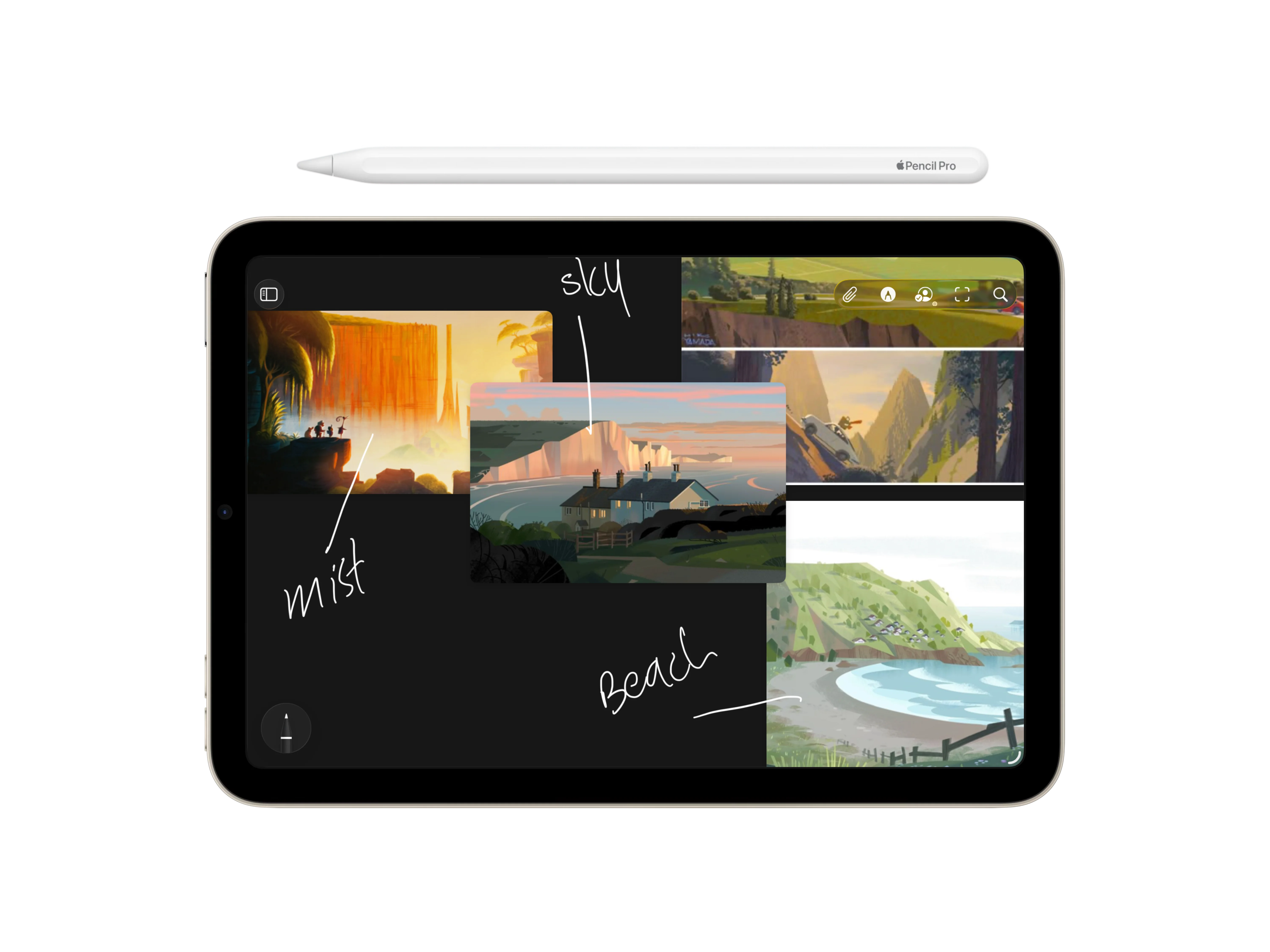
Reference Board on iPad with handwritten Apple Pencil annotations on a canvas
Apple Pencil support lets you sketch, write, and mark up the canvas directly.

Mark the thought while it is still fresh

There is a small kind of thinking that happens before a note becomes a sentence. You circle something. You draw an arrow. You underline a detail, cross out a direction, or add a quick line that explains why two references belong near each other.

Reference now makes more room for that kind of thinking on iPad. With Apple Pencil support, you can draw directly on the canvas through a simple interface that feels native to the device. The tools are familiar: sketch, write, highlight, erase, and keep moving without having to learn a new drawing system. Tap the pencil icon to show or hide the tools, then annotate the board without leaving the space where the work is already happening.

The point is not to turn every board into an illustration. It is to make the canvas feel more immediate. When a detail matters, you can mark it in the moment instead of translating it into a separate note.

Annotations that stay with the board

Handwritten notes are most useful when they remain part of the thing they are explaining. A line around a shape, a quick label beside an image, or a rough route through a cluster only makes sense because of where it sits.

That is why Pencil annotations stay fixed to the canvas. They move with the rest of the board, and they keep their place as you pan, zoom, and scale your work. The marks are not floating above the interface as a temporary layer. They belong to the board itself.

That makes them useful for moodboards, visual research, interface studies, art direction, architecture references, and all the messy middle stages where the relationship between things matters more than the individual items alone.

A faster way to respond visually

Creative work often depends on fast visual reactions. A reference catches your eye because of a corner treatment, a material edge, a lighting transition, a composition, a shadow, or a tiny alignment decision. Writing that down can be helpful, but sometimes it is slower than the thought.

Apple Pencil gives the board a more natural way to respond. You can circle the exact part that matters, write a short reminder beside it, sketch an alternate shape, or tap with two fingers to undo the last stroke while you are still annotating. It behaves the way an iPad drawing surface should behave: direct, familiar, and easy to trust.

It keeps the board closer to how creative work actually feels on an iPad: tactile, visual, and a little more fluid than typing everything into place.

Still a board first

Drawing support fits into the larger direction for Reference. Boards can already hold images, video, YouTube links, quotes, notes, regions, and other fragments of creative context. Pencil support adds another layer, but it does not change the basic idea.

Reference is still a place for collecting, arranging, and returning to visual material. The new drawing tools simply make it easier to leave intent directly on the canvas, close to the references that sparked it.

Sometimes the most useful note is not a note at all. It is a quick mark that says: this part.

Regions make big boards easier to revisit

Large boards are useful because they let a project spread out. Regions make that space easier to return to, letting you save areas on the canvas and jump back to specific themes, features, or short project sections without breaking the board into smaller pieces.

Reference Board showing saved regions on iPhone
Regions make large boards easier to return to.

A map for the canvas

The more useful a board becomes, the easier it is to lose your place inside it. A few saved images turn into a cluster. A cluster turns into a direction. Then, without really noticing, the board has become a small landscape of moods, features, notes, details, and half-finished thoughts.

Regions are a way to give that landscape a little more memory. You can save an area on the canvas, name it, and jump back to it later. Instead of zooming out, scanning around, and trying to remember where a particular group lives, the board can take you straight there.

It is a small navigational feature, but it changes the feeling of a large canvas. The space can stay open without becoming harder to move through.

Group themes without filing them away

Moodboards often make more sense when they stay in one place. A color direction might belong near a material study. A product detail might sit close to a typography reference because the relationship between them still matters. Splitting those things into separate boards can make them cleaner, but it can also make the project feel less connected.

Regions are meant for that middle ground. They let you group parts of a board by theme, feature, scene, or short project section while keeping everything on the same canvas. You can have one region for a visual direction, another for interface details, another for references that only make sense for a specific part of the project.

The point is not to turn the board into a folder system. It is to make the parts you already have easier to return to.

Faster returns to the right thought

Creative work involves a lot of returning. You come back to a board after a meeting, after a walk, after saving something new, or after the project has changed shape a little. The faster you can get back to the right area, the less momentum you lose on the way there.

That is where Regions are most useful. They make it easier to move from the whole project to the exact part you need: a feature idea, a styling direction, a small moodboard, or a temporary cluster for something you are still figuring out.

Reference has always been about keeping visual thinking close to the surface. Regions add another layer to that idea: a way to make big boards feel navigable without making them feel smaller.

Reference for Spring 2026

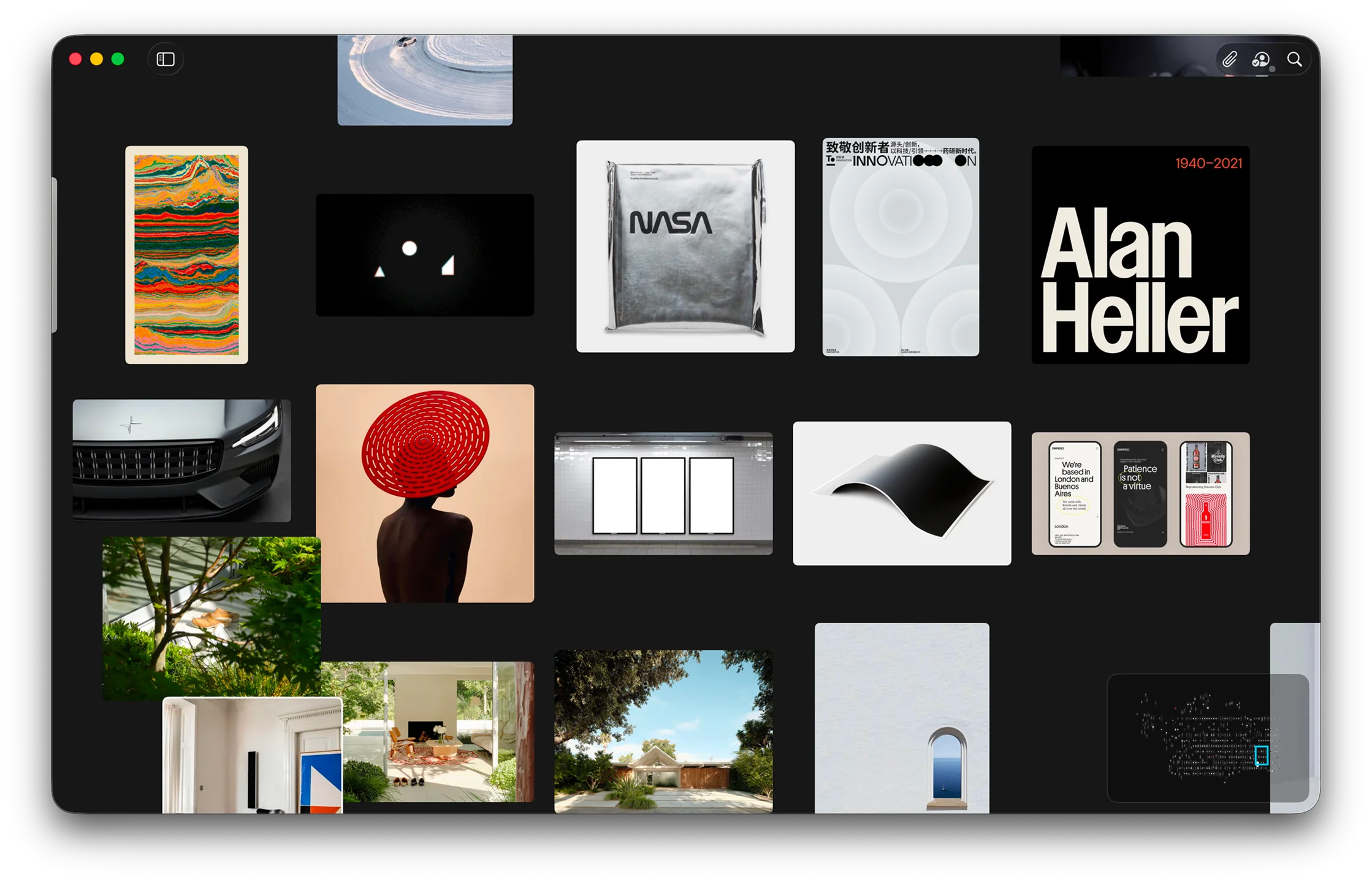
Reference is starting to settle into a clearer idea of what it wants to be: not just a place to store inspiration, but a place to actually think with it. This spring update sharpens that direction with a roomier canvas, faster movement between ideas, and a workflow that feels less like filing and more like creative momentum.

Reference Board showing a mood board canvas on Mac
Reference makes room for ideas to spread out naturally.

A calmer canvas

There is a temptation with creative tools to keep adding controls, panels, and metadata until the interface starts feeling more like a dashboard than a workspace. Reference is trying to move in the other direction. Boards now feel more spacious and more deliberate, which means the things you save can do what they are supposed to do: sit in front of you long enough to spark another thought.

That shift matters more than it sounds. When a board feels visually noisy, you tend to rush through it. When it feels calm, you linger. You compare two images a little longer. You notice that a texture belongs with a color study from three weeks ago. You see a connection that probably would have disappeared in a denser layout.

The goal here is not minimalism for its own sake. It is to make the app better at the quiet part of creative work, the part where you are still figuring out what the project wants to be.

Discovery that keeps moving

Reference also keeps getting better at the jump between one idea and the next. That sounds small, but it is actually where a lot of creative software falls apart. Saving an image is easy. Building momentum from it is harder. Search now does more of that connective work, helping you move by mood, color, subject, and visual similarity instead of forcing you to fully translate instinct into keywords first.

The effect is that the library starts to feel less archival and more alive. A good image can lead to another good image, which leads to a new cluster, which leads to a new board. Instead of interrupting the process, the app starts to reinforce it.

That is the larger theme of this release. Reference should not just hold inspiration after the fact. It should help you stay in motion while you are still discovering what matters.

Visual search that keeps momentum going

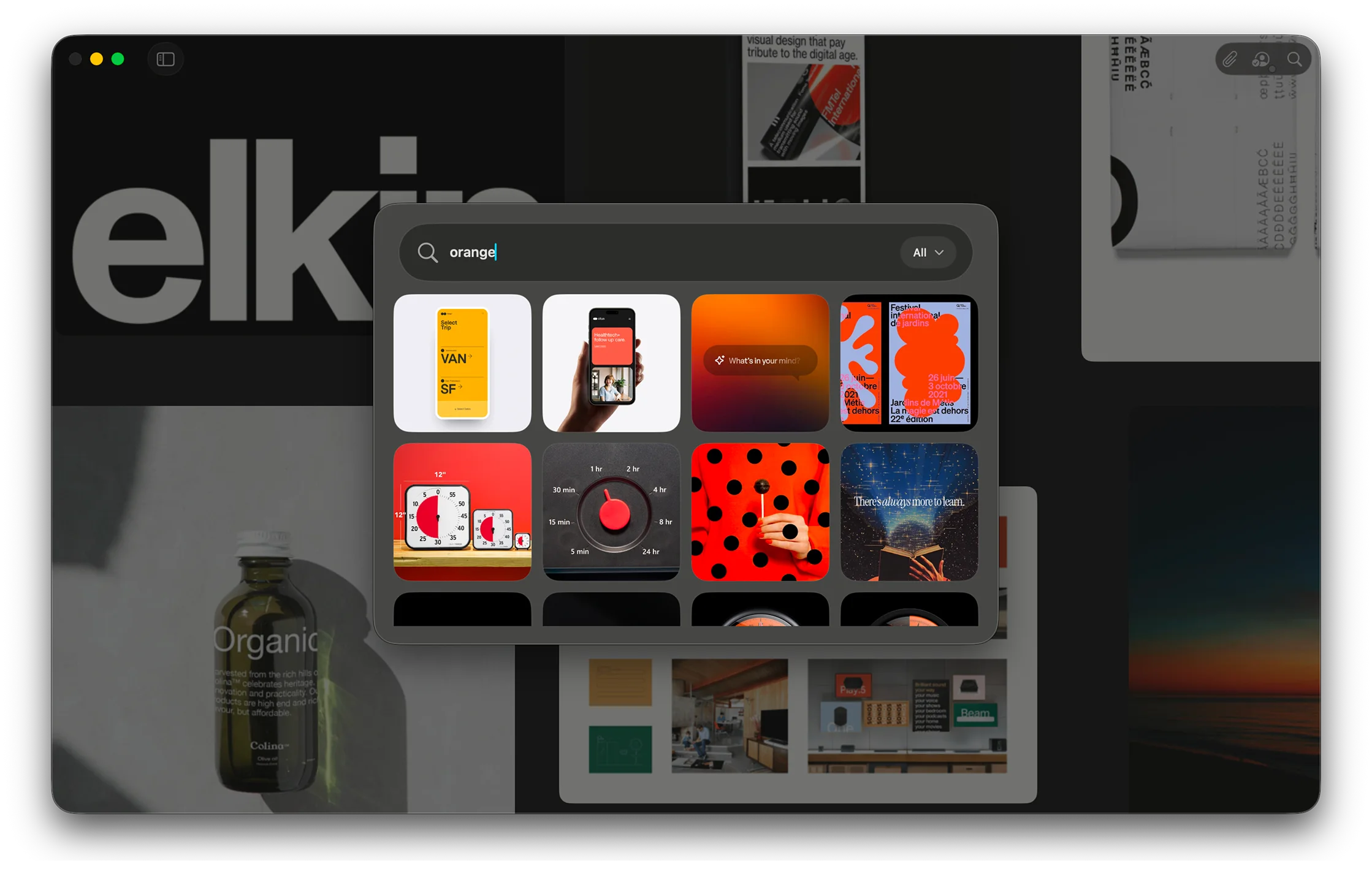
The best search tools do not make you feel like you are searching. They make you feel like you are continuing a thought. Visual search in Reference is built around that idea, helping one strong reference turn into a chain of better ones without forcing you to stop and over-explain what you are looking for.

Reference Board showing visual search results
Search becomes part of the creative process, not a separate task.

Find the next reference faster

This feature is for the common moment when you know the direction is right, but the specific image is not quite there yet. Maybe the composition works, but the palette does not. Maybe the shape language is right, but the styling is too polished or too literal. Visual search lets you start from that almost-right image and keep moving.

That matters because creative search is rarely linear. You are often not looking for an answer so much as triangulating toward one. The more an app understands that, the less it asks you to interrupt your process just to operate the tool.

Reference can now use the image itself as the prompt in a more useful way, surfacing nearby options that feel connected in tone, subject, and atmosphere. The result is a search experience that feels more exploratory and less transactional.

A better bridge from collecting to building

There is also a practical payoff here. Once search starts returning the right kind of material more consistently, building a board becomes faster. You stop bouncing between separate apps or tabs. You stop exporting mental notes about why you saved something in the first place. The board can develop in one place.

That is really what this feature is about. Not search as a database trick, but search as a bridge between collecting references and actually shaping a visual direction.

OCR makes the smallest details searchable

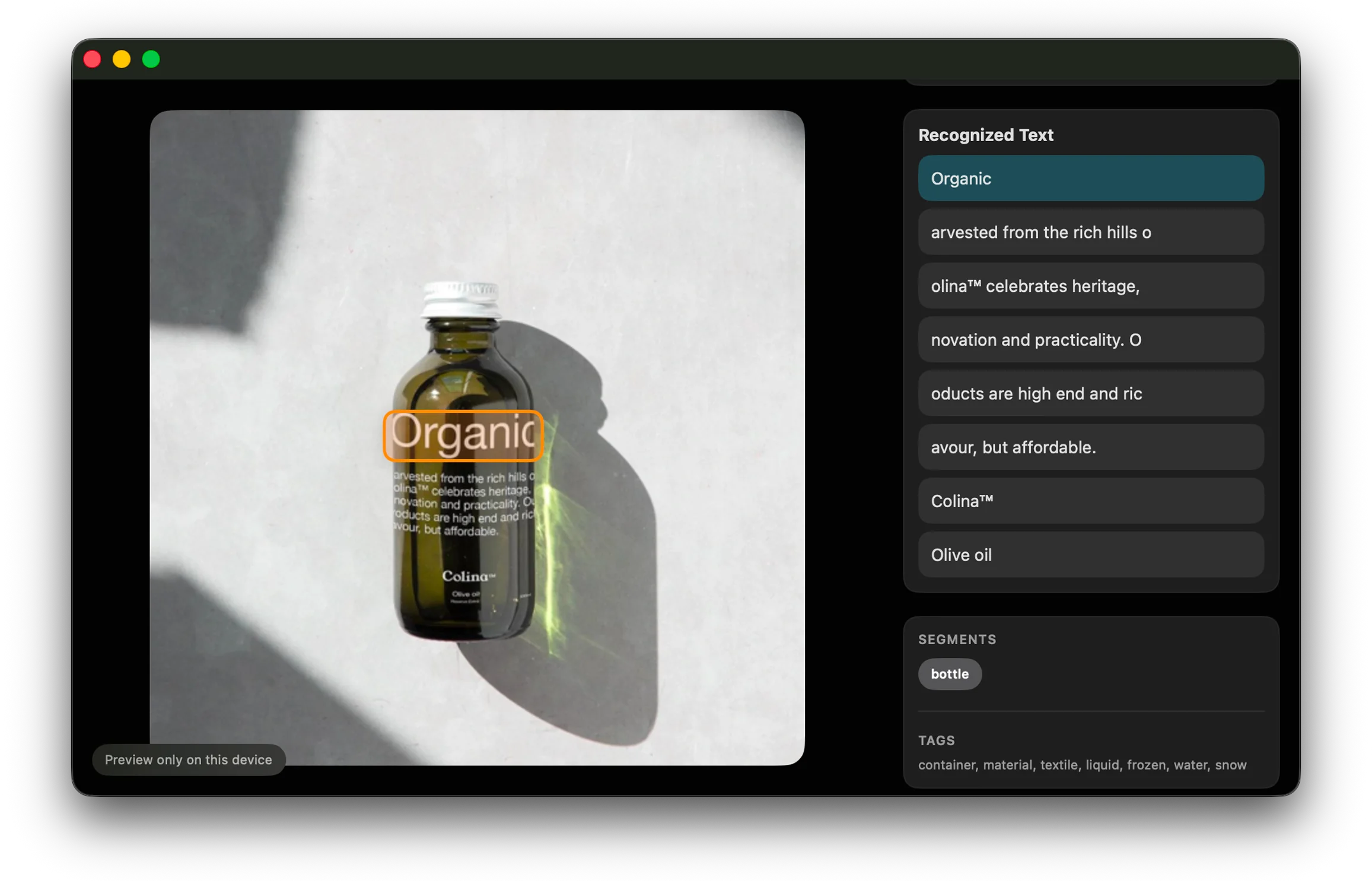
A lot of what makes an image useful is not the whole image. It is the little thing inside it you happened to notice: a brand mark, a line of copy, a type treatment, a label on a bottle. OCR in Reference is built for those moments, quietly turning overlooked details into something you can actually find again later.

Reference Board recognizing text inside an image
Small text inside saved images becomes searchable later.

Text, quietly indexed

Reference now reads visible text inside your saved images automatically, which means the app can remember details you probably were not thinking about when you hit save. That may be a headline, a product label, a bit of signage, or a tiny piece of typography that felt important in the moment and then vanished into the board later.

This is one of those features that sounds technical until you use it in a real workflow. Then it just feels obvious. Of course the title on the poster should be searchable. Of course the word on the packaging should help you get back to the image. Of course the app should remember the details you only half remember yourself.

By indexing text in the background, Reference becomes better at preserving the reasons an image was useful, not just the image itself.

Useful memory, not just more metadata

The key is that this does not ask you to do extra work. You are not expected to tag every asset by hand or maintain a perfect filing system. The app picks up context while you keep collecting.

That makes OCR feel less like a productivity feature and more like a memory feature. It helps the library stay legible even after it has grown large enough that you would normally start forgetting what is in it.

Mixed media belongs on the same board

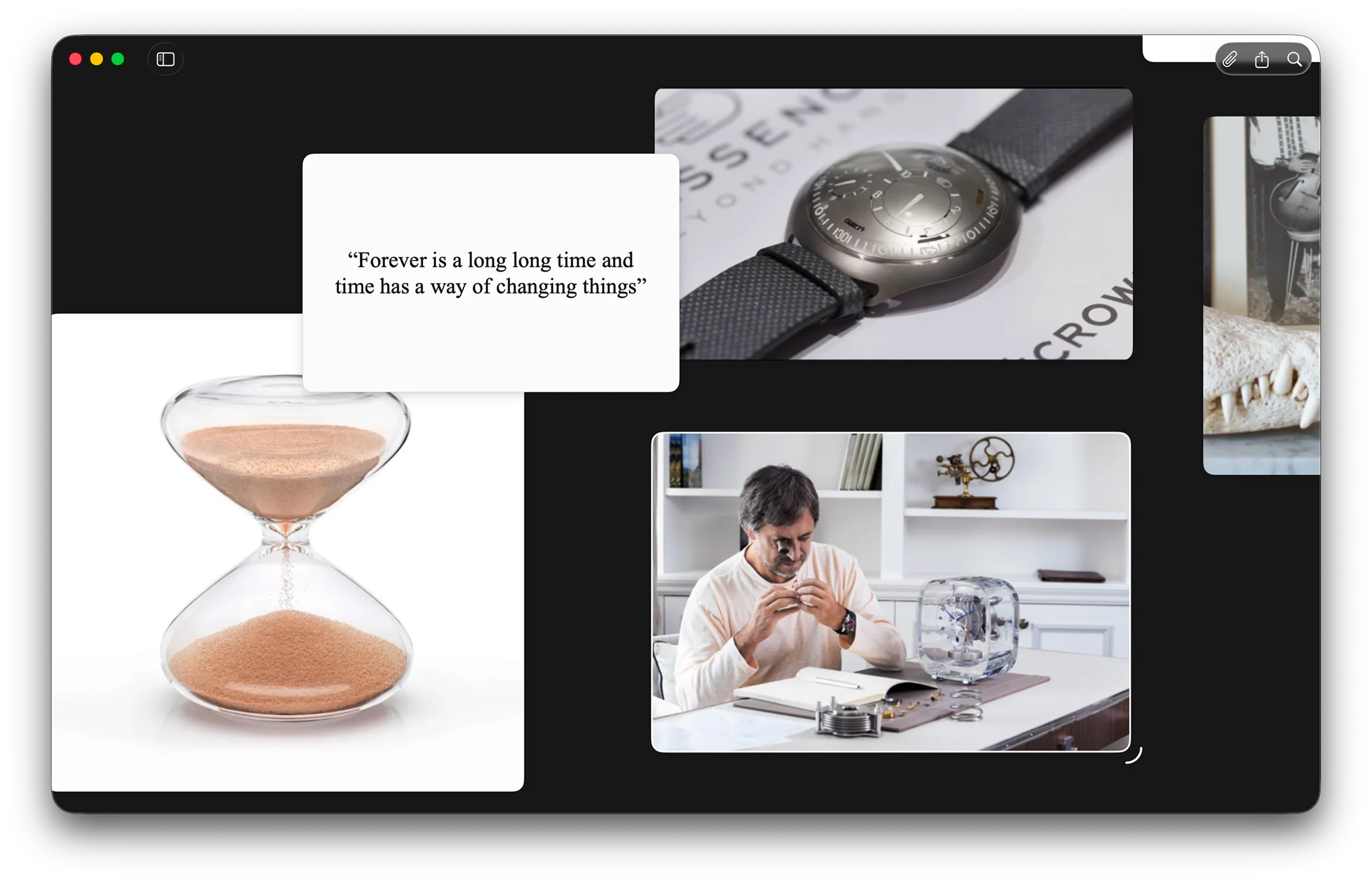
Creative direction rarely arrives in a single format. Sometimes it is an image. Sometimes it is a line of text, a sticky note, a video clip, or a reference link you do not want to lose. Reference is becoming more useful precisely because it treats those materials as parts of the same thought instead of separate categories that need separate tools.

Reference Board mixing images, quotes, and video
Images, notes, quotes, and video can all live together.

A good board is rarely just a stack of pretty images. It usually has context around it: a phrase that explains the mood, a note about why something works, a video clip that captures movement, a link that holds onto a source you are not ready to use yet but do not want to forget.

Reference now makes more room for that reality. Quotes, notes, video, and YouTube can sit alongside still images in the same space, which makes the board feel more like an active work surface and less like a gallery wall.

That distinction matters. A gallery is where you admire finished choices. A workspace is where you make them.

Context is part of the reference

When different media types can live together, the board gets better at holding intent. The image is still important, but so is the note beside it. So is the clip that explains the pacing. So is the quote that captures the tone you are after.

In other words, the context stops being something you have to keep in your head. It can live on the board where it belongs, next to the reference that sparked it.