
Draw directly on the canvas with Apple Pencil
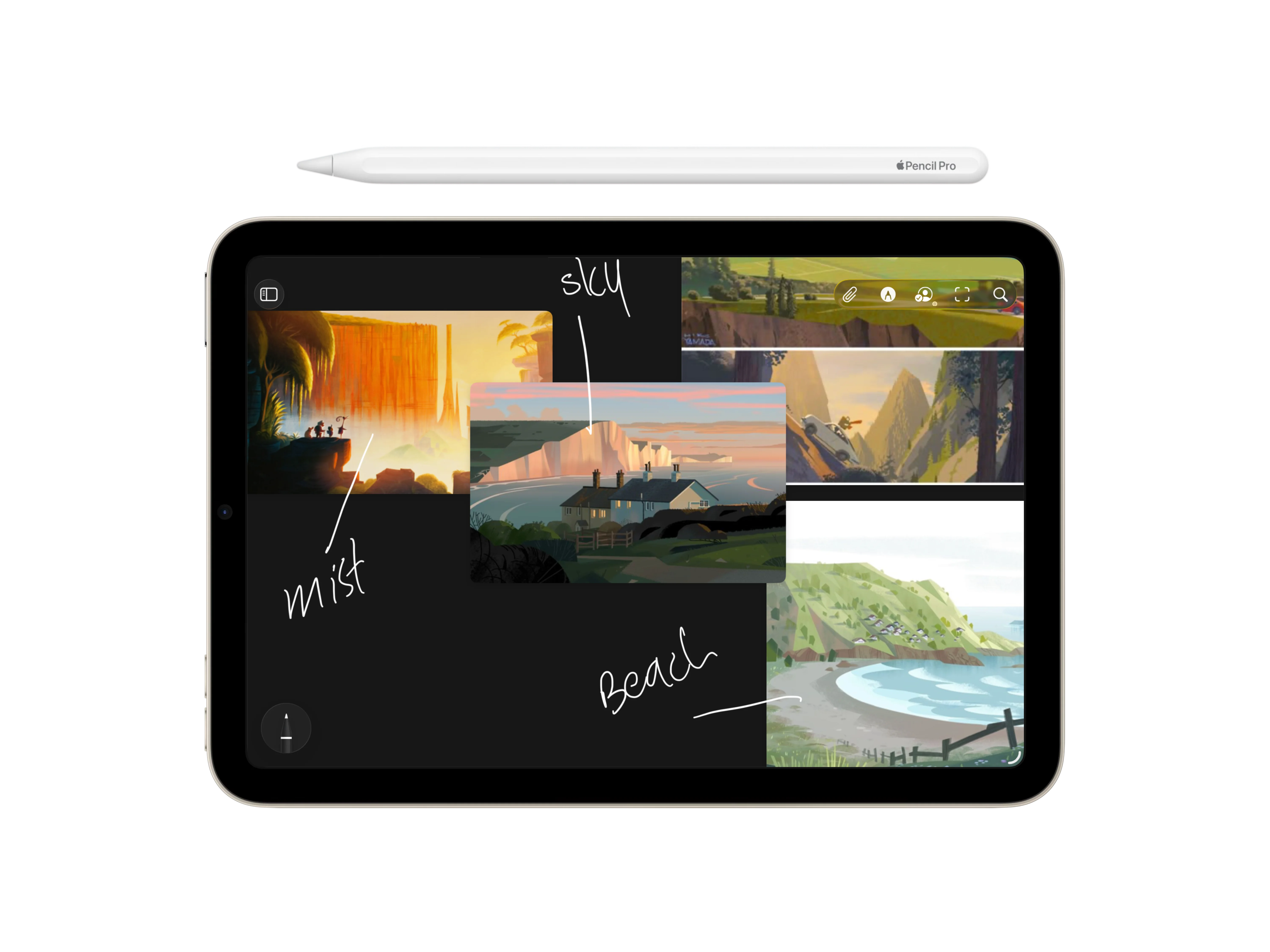
Some ideas are easier to mark than to describe. Reference now supports Apple Pencil on iPad, with an intuitive drawing interface, familiar PencilKit tools, and a two-finger tap to undo, so you can sketch, write, circle, underline, and erase directly on the canvas.
Mark the thought while it is still fresh
There is a small kind of thinking that happens before a note becomes a sentence. You circle something. You draw an arrow. You underline a detail, cross out a direction, or add a quick line that explains why two references belong near each other.
Reference now makes more room for that kind of thinking on iPad. With Apple Pencil support, you can draw directly on the canvas through a simple interface that feels native to the device. The tools are familiar: sketch, write, highlight, erase, and keep moving without having to learn a new drawing system. Tap the pencil icon to show or hide the tools, then annotate the board without leaving the space where the work is already happening.
The point is not to turn every board into an illustration. It is to make the canvas feel more immediate. When a detail matters, you can mark it in the moment instead of translating it into a separate note.
Annotations that stay with the board
Handwritten notes are most useful when they remain part of the thing they are explaining. A line around a shape, a quick label beside an image, or a rough route through a cluster only makes sense because of where it sits.
That is why Pencil annotations stay fixed to the canvas. They move with the rest of the board, and they keep their place as you pan, zoom, and scale your work. The marks are not floating above the interface as a temporary layer. They belong to the board itself.
That makes them useful for moodboards, visual research, interface studies, art direction, architecture references, and all the messy middle stages where the relationship between things matters more than the individual items alone.
A faster way to respond visually
Creative work often depends on fast visual reactions. A reference catches your eye because of a corner treatment, a material edge, a lighting transition, a composition, a shadow, or a tiny alignment decision. Writing that down can be helpful, but sometimes it is slower than the thought.
Apple Pencil gives the board a more natural way to respond. You can circle the exact part that matters, write a short reminder beside it, sketch an alternate shape, or tap with two fingers to undo the last stroke while you are still annotating. It behaves the way an iPad drawing surface should behave: direct, familiar, and easy to trust.
It keeps the board closer to how creative work actually feels on an iPad: tactile, visual, and a little more fluid than typing everything into place.
Still a board first
Drawing support fits into the larger direction for Reference. Boards can already hold images, video, YouTube links, quotes, notes, regions, and other fragments of creative context. Pencil support adds another layer, but it does not change the basic idea.
Reference is still a place for collecting, arranging, and returning to visual material. The new drawing tools simply make it easier to leave intent directly on the canvas, close to the references that sparked it.
Sometimes the most useful note is not a note at all. It is a quick mark that says: this part.